Computer Cable Types – The Ultimate Guide You Need to Know
Home » Computer Cable Types – The Ultimate Guide You Need to Know
Choosing computer cables may seem simple, but it’s actually not that easy.
Cables like HDMI, DisplayPort, USB-C, Ethernet, and SATA cables not only look different, but they can also vary significantly in terms of data transfer speeds, supported refresh rates, power delivery, transmission distances, and even device compatibility.
This guide will start with the most common connectors and their uses, providing a comprehensive overview of monitor cables, USB data/charging cables, Ethernet cables, hard drive cables, internal case cables, and audio cables. Along the way, it will thoroughly explain the technical specifications—including resolution, refresh rate, bandwidth, power, cable length, and protocol compatibility.
What Are the Main Computer Cable Types?
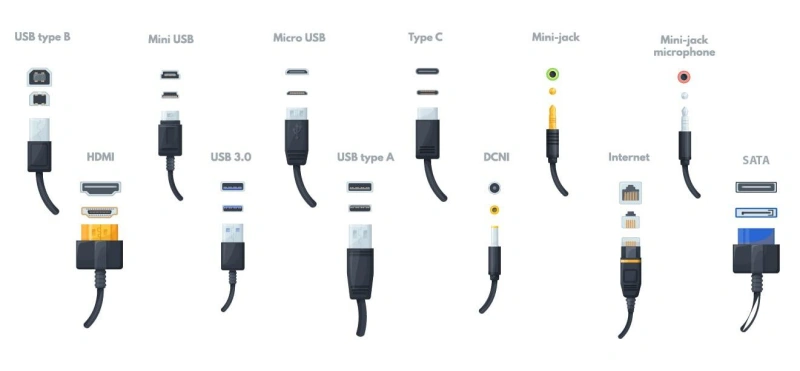
Computer cables can be divided into several major categories: display cables, USB data/power cables, Ethernet cables, storage and internal chassis cables, audio cables, and power cables.
But keep in mind: Just because a connector fits doesn’t mean it can do everything!
Take the widely used USB-C, for example—it’s actually just a physical connector standard. Even though they’re all standard Type-C ports, some may only support slow charging, others can transfer files at high speeds, and still others can connect directly to a monitor for screen mirroring. So when buying or using cables, don’t just check whether they “plug in”—you also need to verify the protocols and functions supported by the connector.
Quick Identification Chart by Function and Connector
| Use | Connector | Identification | Common Devices | Check |
|---|---|---|---|---|
| Video | HDMI | Flat trapezoid | PCs, monitors, TVs | Resolution, refresh rate |
| High-refresh video | DisplayPort | Rectangular, angled corner | GPUs, monitors | DP version, refresh rate |
| Video / Data / Power | USB-C | Small, oval, reversible | Laptops, docks, monitors | Video, speed, USB PD |
| Legacy digital video | DVI | Wide multi-pin connector | Older GPUs, monitors | DVI type, link type |
| Legacy analog video | VGA | 15-pin D-sub | Older monitors, projectors | Analog video only |
| USB peripherals | USB-A | Flat rectangle | Mice, keyboards, drives | USB speed |
| Printers / Devices | USB-B | Square connector | Printers, scanners | USB-B type |
| Legacy portable devices | Mini-USB | Small trapezoid | Cameras, GPS | Do not confuse with Micro-USB |
| Legacy mobile devices | Micro-USB | Small, asymmetrical | Older phones, power banks | Data and charging support |
| Networking | Ethernet / RJ45 | Modular plug with clip | PCs, routers, switches | Category, speed, length |
| Fiber networking | Fiber Optic | LC / SC connectors | Servers, switches | Fiber type, transceiver |
| Storage data | SATA Data | Narrow L-shape | SSDs, HDDs | Data only |
| Storage power | SATA Power | Wide L-shape | SSDs, HDDs | Power only |
| Enterprise storage | SAS | SATA-related design | Servers, enterprise drives | Controller compatibility |
| Internal expansion | PCIe | Varies by device | GPUs, SSDs, cards | Generation and lanes |
| Analog audio | 3.5 mm | Round plug | Headphones, speakers | TRS / TRRS |
| Digital audio | TOSLINK | Square optical plug | TVs, audio systems | Audio compatibility |
| Power | AC / DC | Varies by device | PCs, monitors, laptops | Voltage, current, polarity |
Which Cables Connect Computers to Displays?
When connecting a computer to a monitor, common cable types include HDMI, DisplayPort, USB-C, DVI, and VGA. While all of them can transmit the computer’s display to the monitor, they differ in the types of signals they use, the resolutions and refresh rates they support, their audio capabilities, and their multi-monitor support.
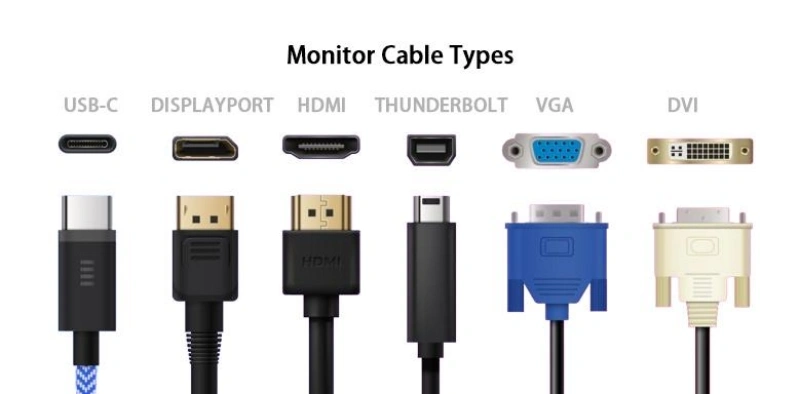
HDMI, DisplayPort, USB-C, DVI, and VGA
HDMI
- Signal and Audio: Fully digital signal; synchronous transmission of video and audio over a single cable; supports ARC/eARC audio return.
- Versions and Performance: HDMI 2.0 supports 4K@60Hz; HDMI 2.1 has a bandwidth of up to 48 Gbps and supports 4K@120Hz, 8K@60Hz, and VRR/ALLM; HDMI 2.2, released in 2025, further increased the maximum link bandwidth.
- Applications: TVs, game consoles, projectors, and standard office monitors; offers the strongest compatibility in the consumer electronics sector.
Tip: HDMI capabilities vary significantly across different devices; do not rely solely on the “HDMI” label—verify the resolution and refresh rate combinations explicitly listed on the device’s specifications page.
DisplayPort
- Signal and Audio: Fully digital signal; supports synchronous transmission of audio and video.
- Versions and Performance: DP 1.2 supports 4K@60Hz; DP 1.4 has a bandwidth of 32.4 Gbps and, when combined with DSC compression, supports 4K@144Hz and 8K@60Hz; DP 2.0/2.1 offers bandwidth of 77–80 Gbps, supporting 4K@240Hz and 16K@60Hz.
- Key Advantages: Supports MST (Multi-Stream Transport) daisy-chaining, allowing multiple displays to be connected in series via a single port; natively compatible with FreeSync/G-Sync, making it the top choice for high-refresh-rate gaming.
- Applications: PC graphics cards, gaming monitors, multi-monitor workstations, and professional design.
USB-C
- Signal and Audio: The physical form factor does not necessarily indicate a video interface; support for DP Alt Mode (DisplayPort Alternate Mode) or Thunderbolt/USB4 is required for video output.
- Key Advantages: All-in-one solution—simultaneously transmits video, data, audio, and power (up to 100W); the top choice for ultrathin laptops and docking stations.
- Versions and Performance: Supports up to 4K@60Hz with DP 1.2 and up to 8K@60Hz with DP 1.4; Thunderbolt 3/4 offers bandwidth of up to 40 Gbps, supporting dual 4K or 8K output.
- Important Note: Not all USB-C ports support video output; check the device specifications to ensure they include the DP Alt Mode, Thunderbolt, or USB4 designation.
DVI
- Signal and Audio: Primarily digital signals (DVI-D is purely digital; DVI-I is analog-compatible); does not support audio transmission.
- Versions and Performance: Single-link effective bandwidth is approximately 3.96 Gbps, supporting up to 1920×1200@60Hz; dual-link bandwidth is approximately 7.92 Gbps, supporting up to 2560×1600@60Hz.
- Applications: Older computers and monitors; this is a transitional interface that is no longer included in new devices.
Tip: DVI adapters are not recommended for high-resolution, high-refresh-rate scenarios, as they may limit display performance.
VGA
- Signal and Audio: Pure analog signal; transmits video only and does not support audio.
- Performance Limits: Theoretically supports up to 2048×1536@85Hz; the common practical resolution is 1080p@60Hz. Image quality is easily affected by cable quality, transmission distance, and electromagnetic interference.
- Suitable Scenarios: Older projectors, industrial equipment, and computers over ten years old; this interface has been largely phased out in new devices.
Tip: Converting from a digital interface to VGA requires an active converter with a dedicated chip; some loss of image quality is unavoidable.
Resolution, Refresh Rate, and Multi-Monitor Support
Resolution: Refers to the total number of pixels on a screen, such as 1920×1080 (1080p) or 3840×2160 (4K UHD). The higher the resolution, the larger the amount of image data per frame.
Refresh Rate: Refers to the number of times a display updates the image per second, measured in Hz. For example, 60 Hz refreshes the image 60 times per second, and 144 Hz refreshes it 144 times per second. The higher the refresh rate, the greater the bandwidth requirements for the connection.
Bandwidth Analogy: A video signal is like a highway for data transmission. Higher resolution means a single vehicle can carry more cargo, and a higher refresh rate means more vehicles pass through per second. The bandwidth requirements for 4K at 144 Hz are significantly higher than those for 1080p at 60 Hz.
Factors Affecting Bandwidth: The bandwidth required for a video link is determined by the combination of resolution, refresh rate, and color depth.
The Correct Sequence for Choosing a Display Cable
- Step 1: Identify the target display mode and determine the required resolution and refresh rate combination, such as 1080p@60Hz, 2K@165Hz, or 4K@120Hz.
- Step 2: Check the specifications of your computer’s output ports to confirm the display modes actually supported by the graphics card or laptop’s HDMI, DisplayPort, and USB-C ports—don’t just look at the shape of the connector.
- Step 3: Check the monitor’s input specifications. Different input ports on the same monitor may have varying capabilities; for example, a high-refresh-rate mode might be supported only by the DisplayPort (DP) port, while the HDMI port may have a lower maximum refresh rate.
- Step 4: Verify the cable specifications. The cable must be capable of reliably handling the required link bandwidth. Prioritize certified specifications and bandwidth capacity over the connector shape or price alone.
Which USB Cables Handle Data, Charging, and Video?
USB cables can be used to transfer data and provide power; some USB-C connections can also transmit video simultaneously. However, you cannot determine what a USB cable is capable of based solely on the shape of its connector. Its actual capabilities depend on the devices at both ends, the USB protocol, the cable’s internal structure, and the cable’s rated capacity.
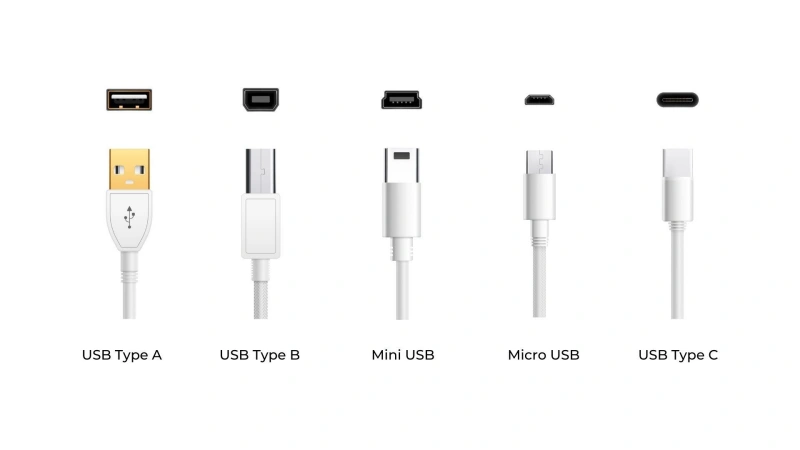
USB-A, USB-B, Mini-USB, Micro-USB, and USB-C
| Connector | Typical Use | Data | Power | Video | Check |
|---|---|---|---|---|---|
| USB-A | PCs, chargers, peripherals | Yes | Yes | No | USB speed |
| USB-B | Printers, scanners, audio devices | Yes | Yes | No | USB-B type |
| Mini-USB | Older cameras, GPS devices | Yes | Basic | No | Legacy devices |
| Micro-USB | Older phones, power banks | Yes | Yes | No | Micro-B type |
| USB-C | Laptops, phones, monitors, docks, SSDs | Up to high speed | USB PD | Can support | Speed, power, video support |
Connector Shape vs. USB Version and Data Speed
Key Concepts
- Connector Shapes: USB-A (wide, flat rectangle), USB-B (square with beveled corners), and USB-C (small, symmetrical oval) describe only the physical appearance and have no direct relation to data transfer speeds.
- Data Transfer Rates: Describe the speed of data transfer. Starting in 2022, the USB-IF has implemented a new labeling system that directly specifies the rate rather than using complex version names.
Comparison of Mainstream Data Transfer Rates
| USB Label | Older Name | Data Rate |
|---|---|---|
| Hi-Speed USB | USB 2.0 | 480 Mbps |
| USB 5Gbps | USB 3.2 Gen 1 | 5 Gbps |
| USB 10Gbps | USB 3.2 Gen 2 | 10 Gbps |
| USB 20Gbps | USB 3.2 Gen 2×2 | 20 Gbps |
| USB 40Gbps | USB4 | 40 Gbps |
| USB 80Gbps | USB4 v2.0 | 80 Gbps |
Steps for Selecting the Right Cable
- Device Requirements: Determine the required data transfer speed (e.g., an external SSD requires 10 Gbps).
- Connectors at Both Ends: Confirm the maximum speeds supported by the computer’s port and the device’s port, respectively.
- Cable Specifications: Choose a cable capable of supporting the required speed; prioritize certification marks over price.
- The “Weakest Link” Principle: The final performance is determined by the lowest of the three factors.
USB Power Delivery, Alternate Modes, and Cable Markings
Key Points of the USB PD Protocol
- Essence of the Protocol: A power negotiation mechanism based on the CC pin of the Type-C interface, where the power source and the device communicate to determine the voltages and power levels supported by both parties, thereby preventing devices from blindly accepting high power.
- Power Limit: The PD 3.1 specification supports up to 240W and introduces three new extended voltage levels—28V, 36V, and 48V—corresponding to 140W, 180W, and 240W application scenarios.
- The “Weakest Link” Principle: The actual charging power is determined by the lowest-capacity component among the charger, the device, and the cable; if any one of these components does not support high power, the system cannot operate at a higher power level.
- E-Marker Chip: Cables supporting power levels of 60W (3A) or higher must be equipped with an E-Marker chip.
USB-C Power Rating System
- Certification Levels: The USB-IF uses an intuitive power rating system—60W or 240W—for USB-C to USB-C cables that have passed compliance certification; the 100W certification is no longer offered.
- Combined Markings: With the exception of USB 2.0 cables, certified cables must also indicate the data transfer rate.
- Label Placement: Color labels are used on product packaging, while black labels are printed directly on the cable itself.
- Value of Certification: The USB-IF stipulates that only products that pass compliance testing may use the official certification logo, making it the primary reference for determining the reliability of a cable’s specifications.
DisplayPort Alt Mode
- Core Principle: Some of the high-speed lines within the USB-C connector can be repurposed to transmit signals other than USB data; the most important application of this is DisplayPort Alt Mode.
- Pin Multiplexing: Among the 24 pins of USB-C, the high-speed differential signal lines (TX/RX) are remapped to the DP Main Link, while the sideband signal pins (SBU) are used to transmit DP AUX channel signals.
- Channel Configuration: Supports 2-Lane or 4-Lane modes—in 4-Lane mode, all high-speed lanes are used for DP video (with only USB 2.0 data retained), while in 2-Lane mode, some lanes are used for DP, and the remainder can continue to transmit USB 3.x data.
Which Cables Are Used for Networking?
There are two main types of cables commonly used for computer network connections: copper Ethernet cables and fiber optic cables. Copper cables are most common in typical offices, homes, and for most end devices. Fiber optic cables are more commonly used for longer distances, higher bandwidth, data centers, or backbone links.
When selecting a network cable, you need to consider the following factors: the required network speed, the transmission distance, the types of ports on your devices, whether there is significant electromagnetic interference on-site, and whether the cable needs to support power delivery.
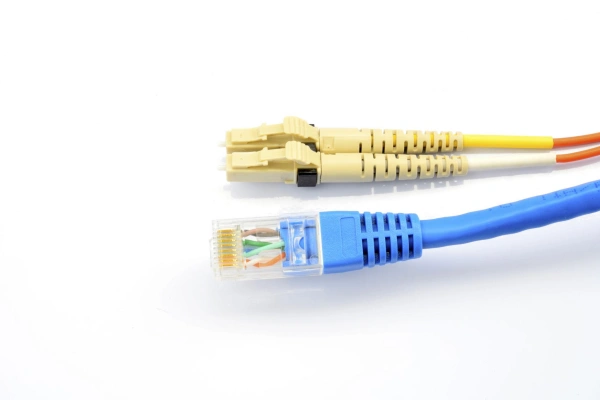
Ethernet Categories and Connector Types
Ethernet Categories
Cat5e (Category 5e): Bandwidth of 100 MHz; supports 1 Gbps at 100 m; suitable for home Gigabit networks and short-distance PoE applications. For new projects, it is recommended to use Cat6 directly.
Cat6 (Category 6): Bandwidth of 250 MHz; supports 1 Gbps at 100 m; features a built-in cross-shaped skeleton to reduce crosstalk; supports 10 Gbps at distances up to 55 m.
Cat6A (Category 6A): Bandwidth of 500 MHz, supports 1 Gbps at 100 m, specifically designed for 10GBASE-T over a full 100-meter channel.
Cat8 (Category 8): Bandwidth of 2,000 MHz, supports 25/40 Gbps at 30 m, intended for short-distance interconnections between data center devices; not suitable as the default option for standard office cabling.
Connector Types
RJ45 (8P8C) Connector Compatibility: Strictly speaking, modern Ethernet uses 8P8C modular connectors, commonly referred to as RJ45.
UTP vs. Shielded Cable: UTP (unshielded) has no additional metal shielding layer and is suitable for most standard office and residential environments.
Special Requirements for PoE Power Delivery: In PoE scenarios, oxygen-free copper (OFC) conductors must be used; aluminum-clad copper or steel-clad copper are strictly prohibited—low-quality cables have high resistance and generate excessive heat, which can easily trigger the switch’s overload protection.
Selection Logic: Standard home/office Gigabit applications → Cat5e or Cat6 UTP; enterprise 10GbE cabling → Cat6A; short-distance high-speed data center applications → Cat8; environments with strong electromagnetic interference (near motors or variable frequency drives) → shielded cables + proper grounding.
Fiber-Optic Connections and Use Cases
Fiber Optics vs. Copper Cables:
Differences in Transmission Media: Fiber optics transmit data via optical signals, while copper cables transmit data via electrical signals.
Attenuation and Distance: Single-mode fiber has an attenuation of approximately 0.2 dB/km, whereas copper cables have an attenuation of approximately 30 dB/km at 1 GHz. Fiber optics are suitable for long-distance, high-bandwidth links, while copper cables are better suited for short-distance connections to end devices.
PoE Power Limitations: Copper cables can transmit both data and power simultaneously, whereas fiber optics cannot directly power terminal devices and require an additional power supply solution.
Cost and Power Consumption: Over short distances, copper cables are less expensive and consume less power; as distances increase, fiber optics become a more cost-effective choice due to their lower cost sensitivity to distance.
Fiber Types and Connectors:
- Multimode Fiber (MMF): Features a larger core (50/62.5 μm) and is suitable for short-distance, high-speed connections.
- Single-mode Fiber (SMF): Features a smaller core (approximately 9 μm) and is suitable for long-distance transmission; common classifications include OS1 and OS2.
- Color Mnemonic: Yellow = Single-mode, Orange = OM1/2, Aqua = OM3/4, Lime Green = OM5, Purple = OM4.
- Common Connectors: LC, SC, MPO/MTP, FC/ST.
- Fiber count options: 2-fiber is the most common; 8-fiber is used for 100G SR4; 24-fiber is used for 400G SR8; higher fiber counts are used for inter-building backbones.
Tip: The color of the fiber optic jacket can serve as an auxiliary identification feature, but may vary by region, manufacturer, and application; the cable markings and product specifications should ultimately be used as the definitive reference.
Use Cases
Use Cases
| Use Case | Recommended Cable | Why |
|---|---|---|
| PC to nearby switch | Ethernet copper | Low cost, easy setup, supports PoE |
| Office cabling | Cat6 / Cat6A | Widely used and easy to maintain |
| 10GbE enterprise cabling | Cat6A or fiber | Choose by distance, cost, and upgrade needs |
| Long-distance switch links | Fiber | Better for long distance and high bandwidth |
| Building-to-building links | Fiber | Avoids ground-potential and EMI issues |
| Data center interconnects | Fiber or high-speed copper | Choose by distance, speed, and interface |
| High-EMI environments | Fiber | Immune to electromagnetic interference |
| PoE devices | Ethernet copper | Carries both data and power |
Which Cables Connect Storage and Internal Components?
When connecting storage devices, graphics cards, and other components inside a computer, common interfaces include SATA, eSATA, SAS, and PCIe. On older devices, you may also see traditional interfaces such as IDE/PATA. In addition, hard drives, graphics cards, motherboards, and processors require separate power connections.
SATA, eSATA, SAS, PCIe, and Legacy Interfaces
| Interface | Use Case | Common Devices | Key Feature | Check |
|---|---|---|---|---|
| SATA | Internal PC storage | HDDs, 2.5" SSDs, optical drives | Up to 6 Gb/s | Needs separate data and power connections |
| eSATA | Legacy external storage | External drive enclosures | External SATA interface | Rare on modern devices |
| SAS | Servers and enterprise storage | Enterprise HDDs and SSDs | Built for enterprise storage | Match controller, backplane, cable, and drive |
| PCIe / NVMe | High-performance storage | NVMe SSDs | High bandwidth, low latency | Check PCIe generation, lanes, and M.2 support |
| PATA / IDE | Legacy PCs | Older HDDs and optical drives | Wide parallel ribbon cable | Used mainly for legacy repair and data recovery |
Internal Power Connectors for PC Components
- 24-pin ATX motherboard power connector: The largest connector inside the PC, it combines multiple voltages—including +3.3V, +5V, and +12V—to power core components such as the chipset, memory, and PCIe slots.
- 4/8-pin CPU power connector (EPS/ATX12V): Located in the upper-left corner of the motherboard, it provides a dedicated +12V power supply exclusively for the CPU. High-end multi-core or overclocked CPUs require a full 8-pin or dual 8-pin connection; insufficient power can easily lead to throttling or system crashes.
- PCIe Graphics Card Power: The PCIe x16 slot itself provides approximately 75W of base power; high-power graphics cards require additional auxiliary power.
6-pin (2×3): Up to 75W
8-pin (2×4): Up to 150W
12V-2×6 (16-pin): The new PCIe CEM 5.1 standard, replacing the older 12VHPWR standard, with a maximum output of 600W.
- SATA Power (15-pin): Powers SATA HDDs/SSDs, optical drives, and some RGB hubs, providing three voltage lines: +3.3V, +5V, and +12V. Each connector delivers a maximum of approximately 54W and can handle a maximum current of 4.5A.
Which Computer Cables Carry Audio?
Common audio connection methods for computers include 3.5 mm, optical, USB, and HDMI, as well as XLR and 6.35 mm TRS connectors, which are commonly used with professional audio equipment.
The main difference between them lies not only in the shape of the connectors, but also in where the audio signal is converted between digital and analog formats.
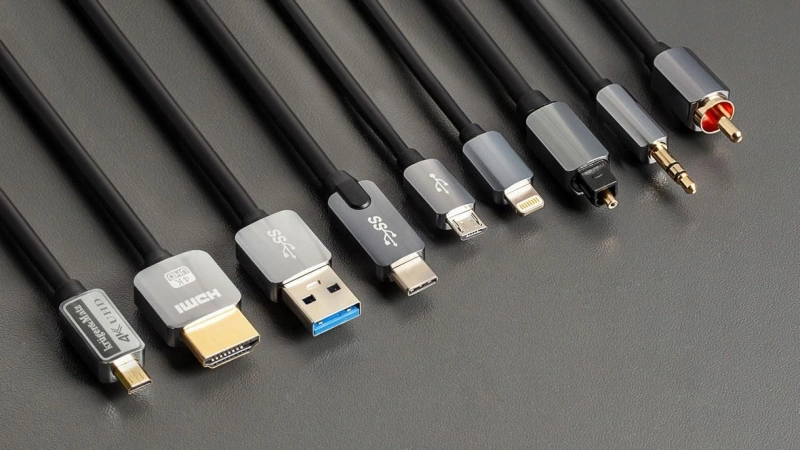
3.5 mm, Optical, USB, HDMI, and Professional Audio
3.5 mm
Primarily transmits analog audio and is commonly found in headphones, microphones, and desktop speakers. It is suitable for standard PC audio connections and is easy to use, but note that different connector types—such as TRS and TRRS—have distinct pin configurations.
TOSLINK / Optical
Primarily transmits digital audio and is commonly found in televisions, amplifiers, and some sound cards. It transmits audio via optical signals, avoiding the electrical connection found in standard copper wires, making it suitable for scenarios requiring digital audio transmission or electrical isolation.
USB
USB transmits audio via digital data and is commonly found in USB headphones, USB microphones, DACs, and audio interfaces. It can also simultaneously power certain devices, making it particularly suitable for computer audio peripherals and professional recording equipment.
HDMI
HDMI can transmit both digital video and digital audio simultaneously and is commonly used to connect computers to monitors, TVs, or AV receivers. If the display device supports audio, you do not need to connect a separate audio cable.
XLR
XLR is commonly used in professional microphones, mixing consoles, and audio interfaces for balanced analog audio transmission. Some devices can also provide 48 V phantom power via XLR, making them suitable for professional recording and sound reinforcement systems.
How Do You Choose a Compatible Computer Cable?
When selecting computer cables, the correct approach is to first confirm the connectors at both ends, the functions the cable needs to perform, and the protocols and performance requirements behind those connectors.
Many computer cables may look identical, but they are not necessarily functionally compatible. For example, a USB-C connector can be used for charging, data transfer, and video output, but not every USB-C port supports all three functions simultaneously; both HDMI and DisplayPort can transmit video, but the supported resolutions, refresh rates, and features depend on the device’s port and the cable’s capabilities.
Identify Both Ports and the Required Function
Step 1: Verify the Connectors on Both Ends
- Verify both ends simultaneously: The output port on the source device (computer) and the input port on the target device (monitor) must match in type, version, and functionality.
- Prioritize direct connections of the same type: If the connectors on both ends are identical, simply choose the corresponding cable—this provides the most stable connection, the lowest cost, and the least signal loss.
- Adapters Required for Cross-Type Connections: For connections such as USB-C to HDMI, verify whether the USB-C port supports DisplayPort Alt Mode video output before selecting the appropriate adapter or docking station.
- Version Determines Maximum Capability: Following the “bucket principle,” the cable version must be equal to or higher than the lower version among the two devices; otherwise, performance will be limited by the weakest link.
Step 2: Identify Functional Requirements
Common functions: data transfer, video output, audio transmission, power delivery/charging, and all-in-one functionality (USB-C “one-cable-fits-all”).
Unique characteristics of USB-C: The physical shape of the connector does not necessarily indicate its functionality; verify via labels next to the connector or the user manual:
- Lightning symbol = Thunderbolt
- DP symbol = Supports video output
- SS/SS10 = High-speed data transfer
- Battery icon = Supports PD charging
- No symbol = Check device specifications to confirm
Verify Protocol, Bandwidth, Power, Length, and Direction
| Parameter | Key Point | What to Check |
|---|---|---|
| Protocol | Connector shape does not define function. USB-C may carry USB, DisplayPort Alt Mode, USB4, or PD. | Check the computer, device, cable, and port markings. |
| Bandwidth | Performance is limited by the lowest-capability device or cable. | Match cable bandwidth to the required resolution, refresh rate, or data speed. |
| Power | USB PD supports up to 240W, but actual power depends on the charger, cable, and device. | Check cable power rating and E-Marker requirements. |
| Length | Longer cables can reduce signal reliability. | Keep cables as short as practical; use active or optical solutions for long runs. |
| Direction | Some adapters and active cables work in only one direction. | Check Source → Display direction, especially for DP / HDMI conversion. |
Decide When an Adapter, Dock, or Active Converter Is Required
Adapter
- Core Function: Physical interface conversion without altering the signal protocol
- Typical Use Cases: USB-C to HDMI (DP Alt Mode pass-through), DP to HDMI (requires DP++ on the source end), USB-A to USB-C
- Features: No power required, low cost, highly portable
Dock
- Core Function: Multi-device expansion via a single cable; desktop-level “hub”
- Typical Use Cases: A single USB-C/Thunderbolt cable connects to the host, simultaneously powering a monitor, keyboard and mouse, network, storage, and PD charging
- Features: Independent power supply (can reverse-charge a laptop); bandwidth determined by the upstream protocol (USB 3.2 = 10 Gbps, Thunderbolt 4/USB4 = 40 Gbps, Thunderbolt 5 = 80–120 Gbps); bandwidth shared among multiple devices
Active Converter
- Core Function: Conversion across signal systems; built-in chips perform digital-to-analog, analog-to-digital, or protocol conversion
- Typical Scenarios: HDMI (digital) → VGA (analog), HDMI → DP (reverse conversion), DP → HDMI (when the source lacks DP++)
- Features: Requires external power supply; relatively high cost; inherent signal loss during conversion; conversion direction is irreversible
How Can Businesses Standardize Computer Cabling?
The core of standardizing computer cabling in a company is to establish a set of repeatable rules so that employees, IT staff, and procurement personnel all know: which cables to use for which devices, how to label them, how many to stock, when to replace them, and what specifications must be met during procurement.
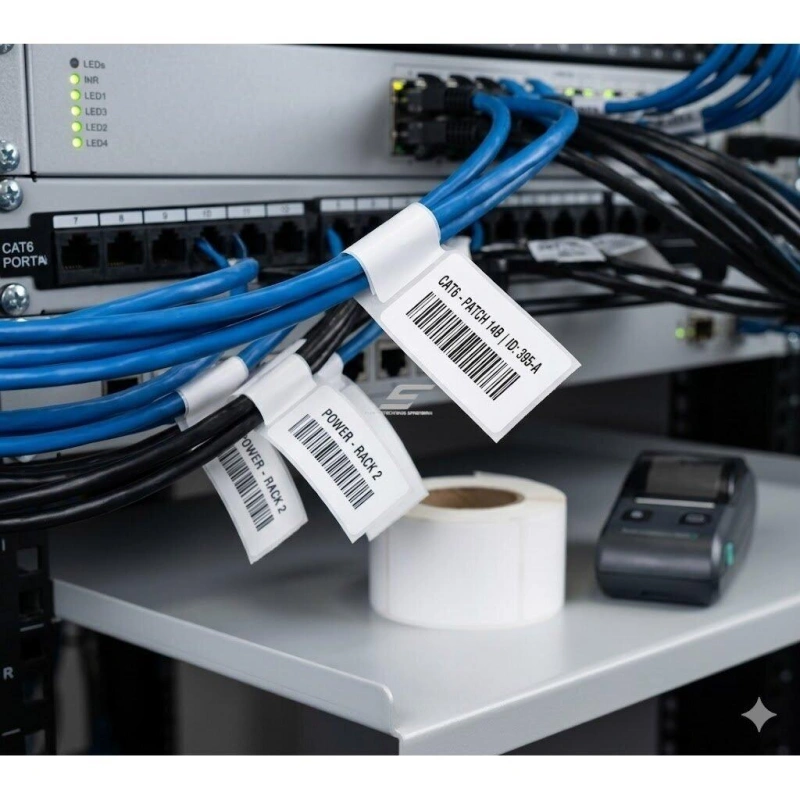
Labeling, Spares, Lifecycle, Safety, and Procurement Specifications
| Area | Best Practice | Watch Out For |
|---|---|---|
| Labeling | Label both ends; include connector, speed, power, and length. | Avoid vague labels like “USB-C cable.” |
| Spares | Stock spares based on usage, failure impact, and lead time. | Do not use the same spare ratio for every cable. |
| Lifecycle | Check for damage, loose connectors, oxidation, and dropouts. | Remove obsolete VGA, DVI, and other unused cables. |
| Safety | Replace damaged or overheated cables; avoid crushing and sharp bends. | Verify ratings for high-power cables. |
| Procurement | Define connector, speed, power, length, video, and certification needs. | Do not buy by price or connector shape alone. |
| SKU Management | Reduce duplicate cable types where possible. | Not every use case needs the highest specification. |
| Compatibility | Check connector, protocol, power, and pinout. | Same shape does not mean interchangeable. |
Frequently Asked Questions About Computer Cables
Q1: Does every USB-C cable support video and fast charging?
No. USB-C is simply the connector shape. Some USB-C cables only support basic charging or low-speed data transfer, while others support high-speed data transfer, video output, and USB Power Delivery. Before purchasing, make sure the cable and your device’s port support the required video output, data transfer rates, and power delivery.
Q2: Is DisplayPort better than HDMI for a computer monitor?
Not necessarily. DisplayPort is commonly found on PC monitors, high-refresh-rate displays, and multi-monitor setups; HDMI is more widely used on monitors, TVs, and laptops. You should choose based on the actual resolutions, refresh rates, and interface versions supported by your graphics card and monitor, rather than simply deciding which one is better.
Q3: Can a cable fit but still be incompatible?
Yes. The fact that it plugs in only means the physical connectors match; it does not guarantee protocol or functional compatibility. For example, a USB-C port may not support video, and some DisplayPort-to-HDMI cables have directional restrictions, so you must also verify the protocol, bandwidth, power, and signal direction.
Q4: How can you identify an unknown computer cable?
First, examine the shape and pin configuration of the connectors at both ends, then look for the model number, logo, or speed rating on the cable. Next, determine whether it’s likely intended for video, USB, networking, audio, or power delivery. If you’re still unsure, it’s best to look up the specifications based on the device’s ports and the cable’s model number—don’t force a connection based solely on appearance.
Conclusion: Computer Cable Types: Ports, Uses, and Selection Guide
Choosing computer cables isn’t just about recognizing HDMI, DisplayPort, USB-C, Ethernet, SATA, or audio connectors—it’s even more important to understand their functions, protocols, bandwidth, power delivery capabilities, and compatibility.
For you, the most practical approach is always to first identify the connectors at both ends, then determine whether you need to transmit video, data, network signals, audio, or power, and finally verify that the cable itself meets the corresponding speed, power, length, and directional requirements.
Linkwings specializes in cable and connectivity solutions. If you have specific needs when selecting computer cables, custom cable assemblies, or evaluating connector compatibility, we recommend always starting with the actual device connectors and application conditions, rather than making decisions based solely on the connector’s physical appearance.

Nicole
The founder of Linkwings Electronics.
10+ Years Experience | 1000+ Global Projects Completed
Specialized in:
- Custom Wire Harness Assembly
- Automotive & Industrial Cable Harness Manufacturing
- Precision Crimping & Terminal Processing
- OEM / ODM Wire Harness Solutions
Need help with your project?
Let Linkwingselec deliver your next wire harness solution.